If a drive drops off the desktop during a copy, stop writing and record what disappeared. On a Mac, a volume can vanish from Finder while the hardware device remains visible in Disk Utility. If the physical device itself disappears, check the data cable and power before looking at its volumes.
Work with a copy of a small expendable file once the link is stable. If the external disk holds your only copy and remains readable, prioritize copying important files to a healthy location. For a disk that repeatedly drops during reads or makes unusual mechanical noises, stop the repeated tests and decide whether the data warrants recovery assistance.
Change one part of the connection
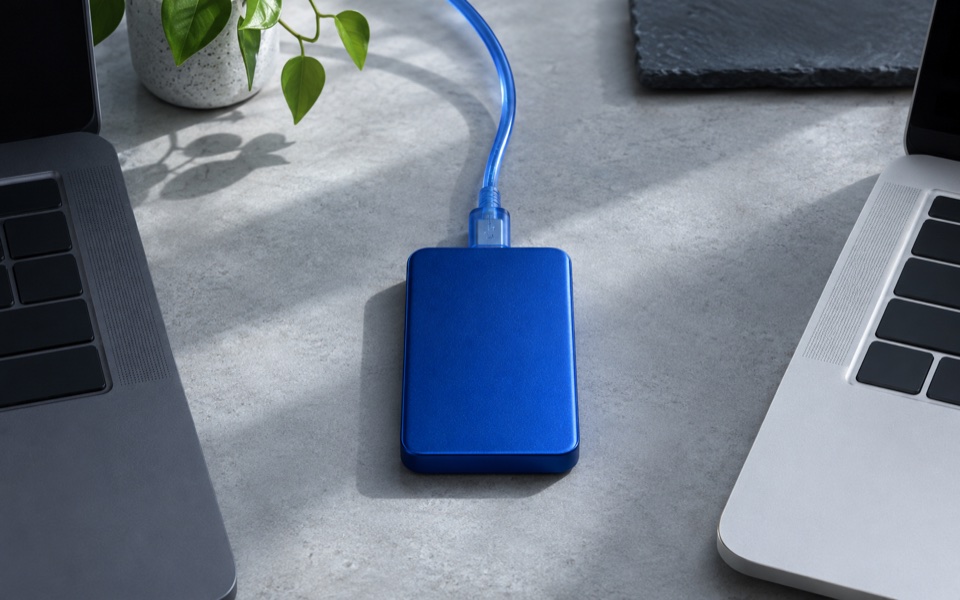
Seagate's USB troubleshooting guide steps through alternative cables, ports, power and computers. Try a known working data cable with the right connectors. A charging cable can look identical on the desk, so confirm that it works for data on another device. A self-powered enclosure should use its specified power adapter.
| Trial | What to hold fixed | Observation to record |
|---|---|---|
| Move from a hub to a direct port | Same drive and cable | Whether the device stays visible through an ordinary read |
| Swap to a known working data cable | Same drive and direct port | Whether a light touch or routine transfer still causes a drop |
| Try a second computer with the stable cable | Same drive and cable | Whether the same fault follows the drive |
| Check the specified power adapter if present | Same host and data path | Whether the drive remains powered and detected |
If the direct connection works twice and the hub path fails twice, move the work to the direct port while you look at the hub or its power. You now have a stable way to access the drive and a suspect connection path. Try the same hub with a known working data cable if you need to narrow down the component.
Check for a stable device with a missing volume
In macOS Disk Utility, use View → Show All Devices to see the physical drive and its volumes. Keep the drive connected long enough to check whether the hardware entry itself disappears. Apple's First Aid guide describes checks for formatting and directory structure. Once your files are backed up and the connection is stable, follow its order from volumes to their containers and then the device.
Write down any exact error and the last setup that was stable. An erase prompt or a repair failure does not make it safe to format a disk whose files you still need. Reformatting is a separate decision after you have a verified copy or have resolved what to do about the missing data.
Decide whether you see a missing volume or a missing device
Look at the list of physical devices before trying another copy. In Disk Utility, expand the physical drive and note whether its expected volumes appear. A drive can be listed while its normal volume is unavailable. When the drive itself stops appearing, repeat with a simple direct connection only if the data is protected elsewhere and the drive seems physically stable. Write down which entry changed and whether it returned without reconnecting the cable.
Suppose a portable disk connected through a dock appears when you log in, then drops during a video transfer. Save any other work before examining the connection. If the first observation is loss of the hardware entry, try a known working data cable and one direct port with no hub. Use an expendable read from the drive during the next trial. Keep the same file size and host if practical. Avoid moving the cable while a real copy is active. If your external disk uses a dedicated adapter, confirm it matches the device and is connected properly.
If the cable change helps, try a second ordinary read in the stable setup. Confirm that the important data can be moved to another healthy location. Do not interpret one successful reconnect as proof that the old disk is reliable. If the same drive continues disappearing across a known cable and host, stop the repeated testing when the disk contains irreplaceable work. Consult the appropriate repair or recovery route before larger operations.
Keep the connection test separate from repair
Allow a stable drive to stay connected while observing whether the volume appears. If the device is present but the volume will not open, note the entry and error in your system. A disk could be formatted for another system or have a damaged volume. Use the Mac and Windows filesystem guide to check compatibility against the actual format. A missing write feature on Mac should be diagnosed separately from a drive disappearing entirely.
Inspect that condition before using a repair tool. Verify backups and follow the provider's documented ordering if the disk is stable and you intend to repair the volume. Keep the procedure away from an unexplained physical failure. If an operating system asks to initialise or erase a disk, preserve the observation and exit the dialog until you have a checked copy or a decision about recovery. A format operation is different from identifying the cause of a disconnect.
| Result | What to preserve in your notes |
|---|---|
| Missing only when connected through the dock | Dock, power supply, cable and the successful direct-port setup |
| Hardware disappears on multiple computers | The known working links and what happened before the drop |
| Hardware stays, but one volume will not mount | Filesystem and volume information plus the exact error |
| A stable copy can be opened elsewhere | The copy location and which important files you checked |
Follow up once the data is safe
Run a harmless check in the setup you plan to keep. Read a small file on the destination, then compare whether the drive stays connected during the normal type of work. If the result depends on a direct port, label the usable cable or port so it can be repeated. If the stable arrangement requires a manufacturer-approved adapter, keep that part with the drive.
Log the symptoms and preserve the backed-up data separately. If the drive cannot be trusted during ordinary use, choose another destination for work while the fault is investigated. When the source and backup drives differ, verify restore coverage on the independent copy before relying on it.