Put a marked test file on the external drive and back it up while that drive is attached. Find the file again in the destination's history. This gives you an actual restore point to check the next time the source is on a shelf.
Identify three locations before the test. The external drive holds the original. A different disk or backup account holds recovery data. A third test folder can hold a restored copy. Record the volume name and the exact path so you can distinguish two drives that happen to contain folders named Projects.
Check the backup scope
For Time Machine, connect the external source and the backup destination. Open Time Machine settings and look under Options. Apple's exclusion guide describes how to add and remove exclusions. Check the volume and the specific folder. If the volume cannot be selected or the exclusion cannot be removed, check the source volume and backup configuration before assuming the setting supports it.
With Backblaze Computer Backup, check the vendor's drive selection and backup status for the attached disk. External drive eligibility and handling are specific to the backup product. If a different app owns your backup, find its list of included sources and record what happens when a volume is disconnected.
Restore from the backup you intend to use
- Save a small file whose name includes the external volume name and today's date. Put different text inside than you would use for any test on the internal disk.
- Finish a backup with the source attached. Record the time and backup destination. Edit the file after the backup so the stored and current contents differ.
- Browse the intended destination history and look for the file at the recorded time. In Time Machine's restore view, start from the relevant folder and choose the date with the older contents. The default Restore goes to the original location, so keep the current test copy separately.
- Open the result and read the distinctive text. Keep the restored sample or a note of its path with your backup record.
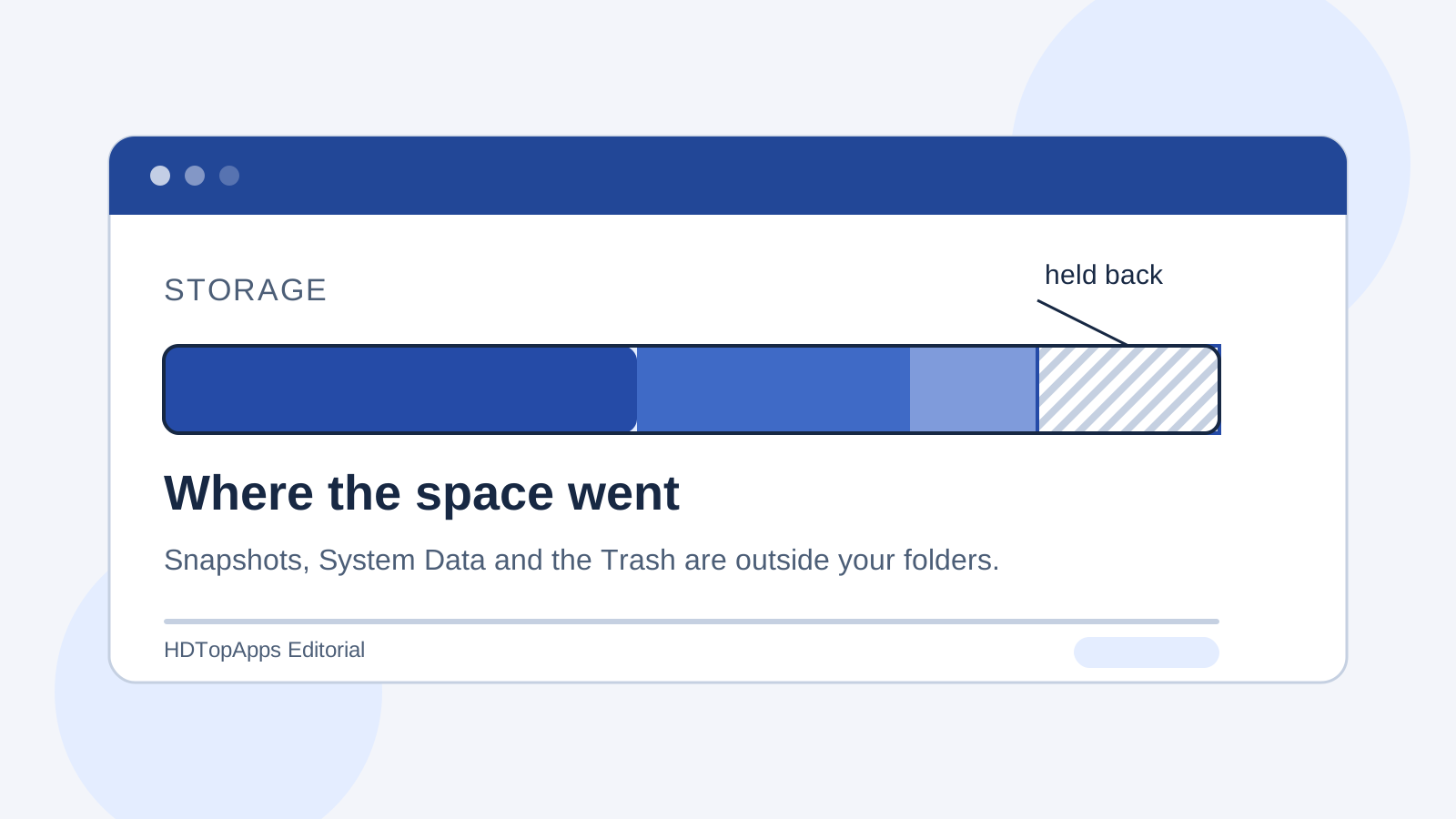
Apple notes that excluded items can still appear in local snapshots. Check the backup destination you are browsing. An entry from the Mac's local timeline alone cannot verify the contents of the external backup disk. If you cannot isolate which backup supplied it, leave the destination test open until you can confirm it.
On the next ordinary workday, reconnect the external source and check the most recent date for one new file. Log the new file's most recent recoverable date so you can see whether ordinary use produces the same result as the trial.
Write down which backup you intend to restore from
Suppose you work on a drive labelled Field Projects and another disk stores the computer's backups. Keeping the two roles separate helps when both disks appear under similar names. Record which volume contains the test file and which service or physical disk represents its independent backup. Include the folder path and the time you can see in the backup interface. If a product has several different kinds of history, identify the one you need if the entire source drive is missing.
A path shown in the backup settings is a good starting point. Compare it to the actual mounted location. A drive formatted, renamed or replaced since the first configuration can show a similar label. Open the sample directory directly and confirm which media contains it. If you have several volumes with a Projects folder, make the temporary filenames and contents different. Put the expected source name in the same line as the version you are about to back up.
Change only the test file after the backup. Put a new word in it and record both the old and current contents. Browsing a similarly named file in a local snapshot can give you a result even if your intended backup never received the file. Check the destination and the completed time as you select the stored version. If the tool can restore to another directory, use a temporary one. For a restore to the original path, preserve the original sample and only replace disposable work.
Test the difference between connected and absent sources
For a device that is not always plugged in, make the first test while both source and destination are available. Let the ordinary backup process finish. On another day, note what happens when the source is absent, then reconnect and give it time to catch up. Read the provider's documented behavior for disks that have been disconnected. The setup might have a retention or rescan rule you need to account for, especially when a desk drive goes unused for weeks.
If you need to recover after physical loss, test as much of that condition as your backup tool supports. Safely eject the external source after the backup and see whether you can browse the intended stored data. If the app requires reconnecting the source to restore to its original path, use a supported separate destination if possible or verify the selected backup source before going further. Avoid erasing a working volume to simulate a loss. Write what you could confirm and which part requires vendor guidance.
Test one representative nested item
A successful small text restore confirms that one example reached the intended backup. Repeat with a disposable copy of a relevant file type if important documents live elsewhere on the volume or rely on a project folder. Open a sample from a nested folder and confirm the contents still match the stored version. Include the application that needs the file if an ordinary preview would miss an important part. The three-version restore drill adds a simple way to check which saved version you retrieved.
Record the date and destination after the test. If a new disk replaces the source, check that the backup app includes it before relying on a previous selection. If the backup volume changes, rerun the marked-file test against that destination. Keep the note somewhere you can reach when the source is unavailable so you know which copy to attempt first.