Add the second keyboard layout while your usual one is still available. Use a plain text document to see which punctuation each layout produces. You can then switch the input for a document while keeping menus in the language you already use.
For a US and UK layout comparison on a familiar keyboard, try Shift+2 and Shift+3. A standard US layout produces @ and #. On a standard UK layout, those chords produce a double quotation mark and £. Other layout variants can behave differently. Confirm what appears in the document before typing into any password field.
Switch input in Windows
Open Settings → Time & language → Language & region. Find the language's options, then add the relevant layout under Keyboards. A layout can appear under your existing language or under another language's options. Look in the keyboard options before installing a full language pack. Microsoft's input layout guide describes which toggle changes the Windows display language and confirms that picking a keyboard layout changes only the key mapping.
Select the layout from the input indicator in the taskbar or hold Win and tap Space to cycle. Open a document and type the test set. Switch back and repeat it with the same physical keys. If the shortcut leaves the input indicator where it was, open the indicator to confirm that both layouts are installed. At Windows sign-in, look at the input language indicator and correct the layout before entering a password. A saved password that contains punctuation can fail with a layout that inserts a different character at the same key position.
Add a Mac input source
In macOS Keyboard settings, use Text Input → Edit to add the desired input source. Pick it from the Input menu, and open Show Keyboard Viewer to compare the new mapping with the labels printed on your keys. Control+Space selects the last input source and Control+Option+Space selects the next one if those shortcuts are configured and available. Check the Input menu if a shortcut conflicts with an app.
Before removing either layout, test the new one in the programs that need it. For instance, press the punctuation chords in a text editor and exercise a frequently used document shortcut with the same keyboard. Leave the original layout installed until you can switch back easily. On a Mac, adding an input source can add its language to your preferred-language list. Verify Language & Region separately if you need to control how a particular app selects its interface language.
Use a short phrase you can recognise twice
Open a new empty document and choose punctuation or characters that expose the change. For someone using a second Latin layout, the key needed for an email address can be useful. For another writing system, choose a sample word with known characters. Type the same physical keys before and after switching. Leave any real password out of the test. If the text looks right and the operating system menus stayed the same, you know which change affected the document.
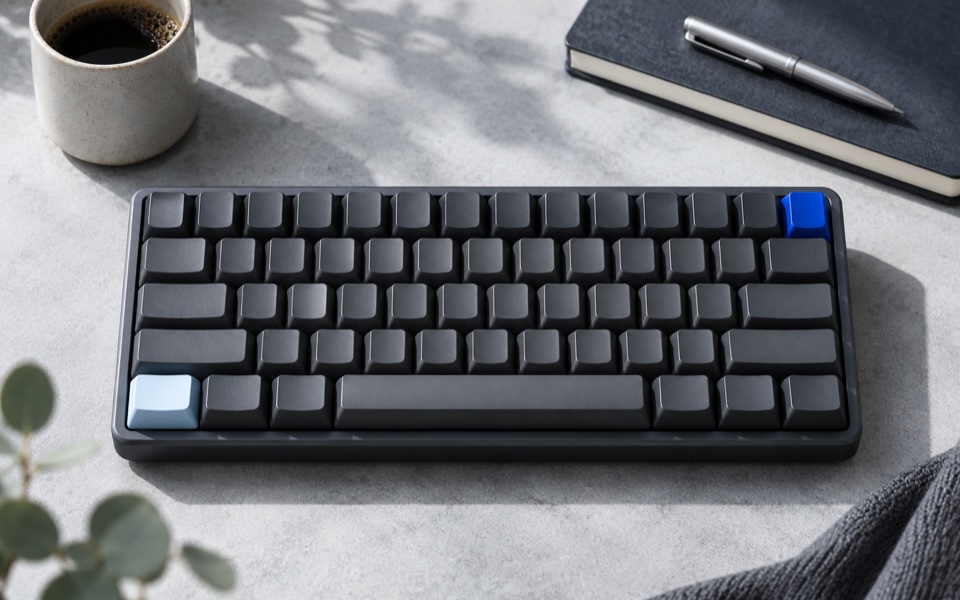
Keep the original layout easy to return to. Save a note of the exact names of both layouts since their labels can differ from a language name. A physical keyboard from another region can have keys that do not match the host's active layout. Use the operating system's viewer or a harmless input to learn how the selected layout maps those keys. Test more than letters. A different position for punctuation or accents can cause editing and signing-in mistakes even with the same physical keyboard.
Check how the layout is selected in daily work
Switch from the operating system indicator and type the test phrase. Switch back using the usual keyboard shortcut and type it again. If the shortcut does nothing, confirm that more than one layout is listed and look at what the foreground app normally does with that shortcut. A remote session may handle keystrokes inside the remote environment or in the local computer. Check both input indicators and type in an authorised test window while keeping the other machine’s settings fixed.
If the wrong layout appears again when you reopen a document, check whether your setup remembers a separate input source for that window or application. Focus a second ordinary document and note the indicator. Keep the two observations separate. When a different layout is used specifically for work in one app, record how to switch back before doing unrelated work. If you also changed an app shortcut, use the app-specific shortcut rehearsal to check the keyboard gesture independently.
On a managed device, some input preferences can be set by your administrator. If you cannot add a needed layout through the ordinary settings, use the relevant support route. Share the desired layout and current display language so the support person can distinguish those choices. A language pack affects a broader set of features than the keys you need to type.
Leave the computer with a known sign-in route
Before locking the computer for the first time after the change, record which indicator lets you identify or restore the layout at sign-in on your operating system. Keep a working session available while you learn the selector. If you need to confirm a sign-in situation, check the displayed input name before entering anything sensitive and restore the usual layout when unexpected characters appear. Heavy trial of a real password can trigger account protections, so practise the punctuation on an ordinary document first.
After the check, leave your usual layout installed unless there is a reason to remove it. If a new layout adds its language to another part of the preferences, inspect that section before changing menus or language order. Verify the actual interface of the app that matters. Document which input layout you selected and how to return. On a computer you borrow or share, leave the input state set for its usual owner when you finish.
When you connect a new physical keyboard, repeat the short practice set before assuming its printed legends match the chosen layout. Confirm the keys beside Enter and the number row as well as letters. A borrowed keyboard can use a different physical arrangement even while the input menu displays your usual choice.